Working With Spinal Stenosis: How to Create a More Comfortable Workspace
For people with spinal stenosis, working at a computer for hours at a time can be challenging. Prolonged sitting, standing, or remaining in one position may aggravate symptoms, making it harder to focus on work and enjoy time outside the office.
Spinal stenosis occurs when spaces within the spine narrow, potentially putting pressure on the spinal cord or nearby nerves. Symptoms vary depending on the location and severity of the condition, but can include back or neck pain, numbness, tingling, and weakness.
Finding a comfortable office setup can help make the workday more manageable. The right workstation allows you to adjust your position, support your body, and bring your work to you rather than repeatedly reaching or bending to accommodate your desk.
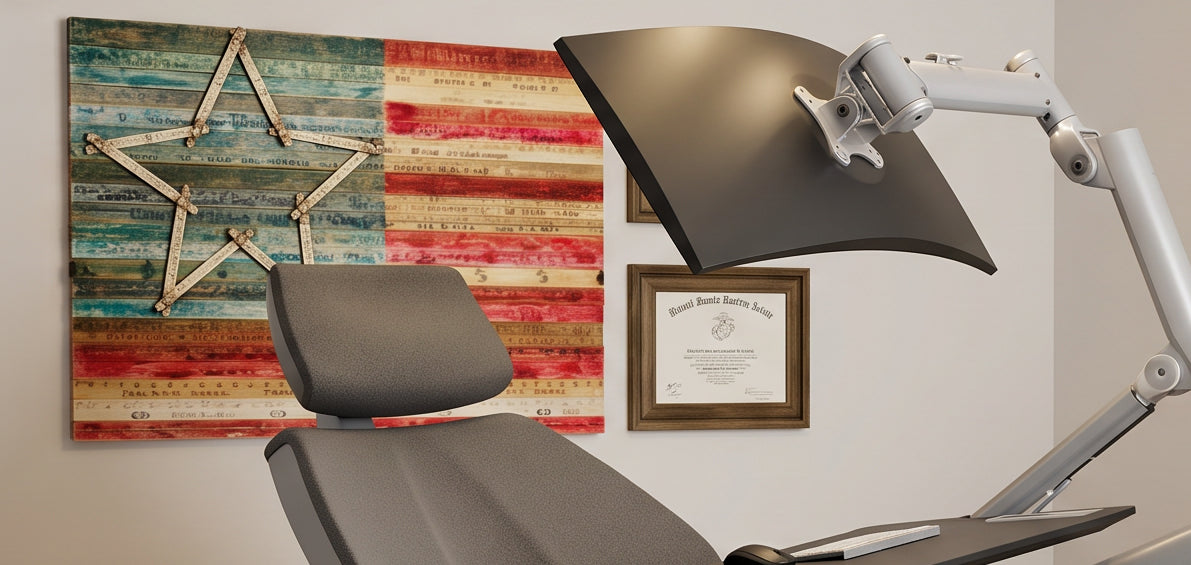
The Altwork Signature Station is a reclining computer workstation designed to support multiple working positions, including upright sitting, reclining, standing, and zero-gravity. Its adjustable support, integrated desk, and flexible monitor positioning offer an alternative to the traditional desk-and-chair setup.

What to Look for in an Office Chair for Spinal Stenosis
There is no single best office chair for everyone with spinal stenosis. The most appropriate setup depends on where the stenosis occurs, which positions aggravate symptoms, and what feels comfortable for the individual.
When choosing an ergonomic workstation, consider the following features.
1. Adjustable Seating and Reclining Positions
One of the challenges of working with spinal stenosis is finding a position that remains comfortable throughout the day. A traditional office chair may offer limited options for changing your posture without interrupting your work.
The Altwork Signature Station allows you to move between upright and reclined working positions. This flexibility gives you more options to find a posture that suits your individual comfort needs.
For some people with lumbar spinal stenosis, sitting or leaning forward may ease symptoms. Others may find that certain seated or reclined positions aggravate their discomfort. The goal is not to maintain a single supposedly ideal posture, but to find supportive positions that work for you.
With the Signature Station, you can adjust your position while keeping your computer, keyboard, and mouse within reach.
2. Head, Back, and Leg Support
A supportive workstation should accommodate your body without requiring you to hold yourself in a strained position for extended periods. As noted by the Mayo Clinic, relieving spinal pressure and changing posture are key strategies for managing spinal stenosis.
The Altwork Signature Station features adjustable head and leg support, along with a backrest designed to support the upper body and elbows during computer use.
These features let you customize your setup and find a comfortable working position. Supporting your arms and positioning your head comfortably may also help reduce the need to lean forward or repeatedly adjust your posture to reach your equipment.
Because spinal stenosis affects people differently, it is important to choose a setup that accommodates your symptoms rather than assuming that a particular position will relieve nerve pressure.
3. A Desk That Moves With You
Traditional desks are designed around a relatively fixed working position. If you want to recline, you may need to reposition your monitor, keyboard, and other equipment separately.
The Altwork Signature Station integrates the desk with its adjustable seating system, allowing your workspace to move with you as you change positions.
Its magnetic desk system helps keep compatible work essentials stable during repositioning. This integrated approach reduces the need to repeatedly rearrange your equipment to accommodate a different posture.
For someone who finds frequent reaching or bending uncomfortable, keeping essential items within easy reach can be a useful part of a more accommodating workspace.
4. Flexible Monitor Positioning
Monitor placement is an important consideration when building an ergonomic computer workstation. A screen positioned too high, too low, or too far away can encourage awkward head and neck movements. Proper monitor placement prevents cervical spine strain and spinal misalignment, critical for individuals with neck stenosis. Resources like Spine-Health highlight the importance of customized ergonomic setups to protect spinal health and alleviate discomfort.
The Altwork Signature Station offers adjustable monitor mounting so you can position compatible displays for your preferred working posture, including reclining.
This is particularly relevant for people managing cervical spinal stenosis, which affects the neck, or anyone who experiences neck discomfort while using a computer.
The objective is to keep the screen at a comfortable viewing angle and distance without forcing your neck into an uncomfortable position. Your ideal setup will depend on your height, equipment, and individual needs.
5. The Option to Work Standing
Some people prefer alternating between sitting and standing during the workday. The Altwork Signature Station also functions as a standing workstation, providing another option for changing positions.
However, standing is not automatically better for people with spinal stenosis. Symptoms vary, and lumbar spinal stenosis can cause pain or leg discomfort that worsens with prolonged standing or walking.
Rather than forcing yourself to alternate between positions on a fixed schedule, pay attention to how your body responds. Choose positions that are comfortable and follow any guidance provided by your healthcare professional.
Explore the Altwork Signature Station to see how its adjustable design accommodates different ways of working.
How to Make Working at a Computer More Comfortable With Spinal Stenosis
Choosing a supportive workstation is one part of creating a more comfortable work environment. The way you organize and use your workspace matters, too.
Consider these practical adjustments:
-
Change positions as needed. Avoid forcing yourself to remain in one position when it becomes uncomfortable. Find opportunities to reposition throughout the day.
-
Keep essential equipment within reach. Position your keyboard, mouse, and frequently used items to minimize unnecessary reaching and twisting.
-
Adjust your monitor. Set your screen at a comfortable height and distance to reduce the need to bend your neck forward or look upward.
-
Support your arms. Arrange your keyboard and mouse so you can work without unnecessarily lifting your shoulders or reaching forward.
-
Pay attention to symptoms. If a position increases pain, numbness, tingling, or weakness, reconsider your setup and seek professional guidance when appropriate.
A physical therapist or other qualified healthcare professional can help you determine which positions and workstation adjustments are appropriate for your particular condition.
Can a Zero Gravity Workstation Help With Spinal Stenosis?
A zero gravity workstation is designed to support a reclined working position rather than requiring you to sit upright at a conventional desk.
The Altwork Signature Station combines an adjustable chair, integrated desk, and monitor mounting system to make working while reclined possible. Instead of treating reclining as a break from computer work, it allows you to continue using your computer in that position.
For someone who finds a conventional office chair uncomfortable, this can offer another way to approach the workday.
However, the term zero gravity describes a positioning concept, not a medical treatment. There is no guarantee that reclining will reduce symptoms associated with spinal stenosis, and some people may find certain reclined positions uncomfortable.
A properly aligned, supportive work environment, as recommended by experts like Cleveland Clinic, helps prevent pain while enhancing productivity in a Zero Gravity Desk. The best workstation is one that accommodates your individual needs, allows practical adjustments, and supports the activities you need to perform.
Work Comfortably in More Than One Position
Living with spinal stenosis can make a conventional office setup difficult to tolerate, especially when your work requires hours at a computer. Having more ways to position your body and organize your workspace can give you greater flexibility in how you approach the day.
The Altwork Signature Station brings together adjustable seating, head and leg support, an integrated magnetic desk, flexible monitor positioning, and a standing option in one workstation.
Rather than committing to a single working posture, you can explore different positions and identify the setup that best fits your comfort and workflow.
Discover the Altwork Signature Station and explore an alternative to the traditional office desk and chair.
Disclaimer: This article is for informational purposes only and is not medical advice. The Altwork Signature Station is a computer workstation, not a medical device or treatment for spinal stenosis. Individual experiences vary. Consult a qualified healthcare professional about workstation positioning and activity modifications appropriate for your condition.

Frequently Asked Questions
What is the best office chair for spinal stenosis?
There is no universally best office chair for spinal stenosis. Look for a setup that supports your body, allows comfortable adjustments, and accommodates the positions that work best for your symptoms. An adjustable workstation with reclining capabilities may be worth considering if conventional seating is uncomfortable.
Is sitting or standing better for spinal stenosis?
It depends on the individual and the location of the stenosis. Some people with lumbar spinal stenosis find that sitting or leaning forward eases symptoms, while prolonged standing or walking can make them worse. Others experience different patterns of discomfort. Follow your healthcare professional's recommendations and avoid positions that aggravate your symptoms.
Is a reclining office chair good for spinal stenosis?
A reclining chair provides another position to try, but reclining does not necessarily relieve spinal stenosis symptoms. Comfort depends on the individual, the affected area of the spine, and the angle and support of the chair. If you are considering a reclining workstation, evaluate whether its adjustments accommodate your needs.
Can you work at a desk with spinal stenosis?
Many people with spinal stenosis continue working at a computer, although their comfort and abilities vary. Adjusting monitor height, keeping equipment within reach, using supportive seating, and changing positions as needed may help make computer work more manageable. A healthcare professional can help identify suitable modifications for your situation.